Showing posts with label Honda diagnostic system. Show all posts

Sunday, November 24, 2019

How to install Mangoose Honda Software on VMware?

The MINI VCI cable for Honda (also called mangoose for Honda) gives very good results for older Honda models, compared to expensive universal testers that usually do not produce conclusive results.  I failed to install software on Windows 7, but make it work on XP Mode on Windows 7 machines using VMware.  Check tutorial below :
mangoose-honda-cable-1
Connect mangoose Honda vci cable with laptop
Check MVCI firmware version. It is V1.4.1
install-mangoose-honda-software-1

install-mangoose-honda-software-2
StartHDS program shows software version 2.018.013
install-mangoose-honda-software-3
Try to run Honda Diagnostic System software on the desktop, Win7 reports an error  “The program cannot start because NPPTools.dll is missing from your computer.”
install-mangoose-honda-software-4
Power on virtual machine
install-mangoose-honda-software-5
install-mangoose-honda-software-6
install-mangoose-honda-software-7

Open software CD
install-mangoose-honda-software-8

Open HDS folder
install-mangoose-honda-software-9

Run Setup.exe
Install Wizard to HDS PC Ver.2.018
Accept license agreement
install-mangoose-honda-software-10

Select deationation, i.e USA
install-mangoose-honda-software-11

Select communication interface as GNA600
Press OK when system prompts interface device instruction message
install-mangoose-honda-software-12

InstallShield Wizard complete
Open software CD again
Open MVCI Driver 1.4.3 for HONDA folder
install-mangoose-honda-software-13

Install MVCI Driver for HONDA
install-mangoose-honda-software-14

Finish installing MVCI driver
Press Yes to confirm installer information

Software is ready to use
Run StartHDS to check software version
Exit StarHDS program
Run Diagnostic System software on desktop
install-mangoose-honda-software-15
install-mangoose-honda-software-16
Start vehicle diagnosis
install-mangoose-honda-software-17

install-mangoose-honda-software-18
Done.

Monday, July 8, 2019

Honda Diagnostic System HDS Diagnosis Programming FAQs

Look here: Honda Diagnostic System HDS user manual by questions and answers:
HDS hardware
HDS software
HDS diagnosis
HDS reflash
HDS subscription

Hardware

  1. Q: Is the Bosch MVCI or Denso DST-I compatible with Windows 7, 8, 8.1 and 10?A: Yes, Windows 7 Professional (32 and 64 bit), Windows 8, 8.1 Professional (32 and 64 bit), and Windows 10 Professional (32 and 64 bit) are supported.
  2. Q: Can I use the new HDS software with the HIM or GNA600A: No, the GNA600 ONLY work with HDS software old version 2.027.003: http://www.obdii365.com/wholesale/honda-gna600-new-version-2011-v2024.html
For HDS new version 3.102.004, you should use it with HIM: http://www.obdii365.com/wholesale/honda-hds-him-diagnostic-tool-with-double-board.html
  1. Q: Is a J2534 interface device (such as those supplied by Actia, Blue Streak Electronics, Bosch, Drew technologies, Ease Diagnostics, Snap-on, etc.) compatible for programming key and code information?A: No, generic J2534 devices are for re-programming only and must use the Honda Pass-Thru Reprogramming (J2534) software. For further information, refer to your device supplier’s documentation or website.
  2. Q: Can I use a generic J2534 interface device (such as those supplied by Actia, Blue Streak Electronics, Bosch, Drew technologies, Ease Diagnostics, Snap-on, etc.) with HDS?
    A: No, HDS software will only work with a PC and the Modular Vehicle Communications Interface (MVCI) or HIM.
  3. Q: Can I connect the Bosch MCVI or DENSO DST-i unit to my HDS computer in WiFi mode?A: Yes.

Software

PC requirement
  1. Q: Can I use a MAC instead of a PC for HDS?A: No. Look here: the system requirements
Personal Computer (PC)
  • Laptop or desktop computer
  • Intel or AMD processor: 2.0 GHz or higher
  • Keyboard & mouse
  • Memory (RAM): 1GB or higher
  • Hard Drive Space: 20 GB or more
  • Floppy Drive: not required
  • USB: 1.0 or higher
  • Network Card: 10/100/1000 Mbps Ethernet
  • Optical Drive: 8x DVD-ROM
  • Video Resolution: see Display Requirements
  • Sound Card: 1 channel audio or higher
  • Internal or external audio speakers
Operating System
USA Tool Requirements
HDS software and J2534software:
Windows 7 Professional (32 bit and 64 bit)
Windows 8 Professional (32 bit and 64 bit)
Windows 8.1 Professional (32 bit and 64 bit)
Windows 10 Professional (32 bit and 64 bit)
Canada Tool Requirements
HDS:
Windows 7 Professional (32 bit and 64 bit)
Windows 8 Professional (32 bit and 64 bit)
Windows 8.1 Professional (32 bit and 64 bit)
Windows 10 Professional (32 bit and 64 bit)
Display
  • Recommended display resolution is 1024 x 768 with the large font setting.
  • 800 x 600 will work, but some procedures work better at the higher resolution.
Web Browser
ServiceExpress requires Internet Explorer 10 or 11; Chrome ver.44*, Firefox Ver.40, Safari Ver.8
  • Earlier versions of Internet Explorer are not supported.
  • Netscape, AOL are not supported.
  • Internet connection: 56k or faster.
Viewer Requirements
  • ServiceExpress requires Adobe Acrobat Reader version 11 or higher.
  • To download the latest version of Acrobat Reader, click here
  • NOTE: Uninstall prior versions of Acrobat Reader before installing the recommended update. For more detailed information about Acrobat Reader, please visit www.adobe.com
  • ServiceExpress requires Adobe SVG Viewer version 3.03 or higher when using Internet Explorer or Edge.
  • To download the latest version of Adobe SVG Reader, click here
  • NOTE: For more detailed information about Adobe SVG Reader, please visit www.adobe.com.
  • ServiceExpress requires PDF Viewer extension when using Chrome.
  • To download the latest version of PDF Viewer extension, click here and search for PDF Viewer.
Internet Explorer Settings
  • Cookies must be enabled
  • Javascript must be enabled
  • NOTE: Uninstall prior versions of Acrobat Reader before installing the recommended update. For more detailed information about Acrobat Reader, please visit www.adobe.com.
Note: These are generally the default settings for Internet Explorer.

HDS Diagnostics

  1. Q: What is the cost of the various diagnostic software subscriptions?
    A: Click on the “Tools Info” tab at the top of the ServiceExpress web-page for pricing and other tool related information.
  2. Q: How do I install HDS software and what are the requirements?A: Windows 7 32 bit is the one tested by pros. For HDS installation, pls watch the video:
  1. Q: How do i get the HDS software and the updates?A: The HDS software download link can be found here: http://blog.obdii365.com/2017/06/16/free-download-honda-him-hds-3-102-004-and-i-hds/. When software updates are released, you can get new links on the official blog: http://blog.obdii365.com/.
  2. Q: Can I install HDS software and other OEM’s diagnostic software on the same PC?A: This may or may not be possible, depending on the other OEM’s software. You may need to uninstall the other diagnostic software in order to use the HDS.
  3. Q: Will HDS software work with interface devices other than the MVCI, such as J2534 devices, HIM, GNA600, Ford VCM, etc.?A: No, HDS will work with the MVCI and HIM diagnostic tool.
  4. Q: Does the HDS software package retrieve codes for ABS, AIRBAG, and CHECK ENGINE?
    A: It depends on the year of the vehicle. Some older vehicles may not have the capability. Consult the Service Manual for specific model and year.

HDS Reprogramming (Reflash)

  1. Q: How do I reprogram the ECU?A: Both HIM clone and genuine can do ECU reprogramming for Honda.
  2. Q: Is there an easy way to find out if there is updated programming for an ECM/PCM/ECU of a specific make or model?A: No, you have to install and run one of the supported update applications with the required hardware.
  3. Q: Are all vehicle ECM’s, PCM’s, and ECU’s reprogrammable?A: No, ECM/PCM reprogrammability was phased in between 2001 and 2005. All 2006 and later models ECM/PCMs are reprogrammable. The reprogramming software will indicate whether an update is available.
  4. Q: I have a J2534 interface device. How do I purchase software?A: Click on the “Tools Info” tab at the top of the ServiceExpress web-page, then click on Free Download in software column for the “Honda Pass-Thru Reprogramming (J2534).
  5. Q: I currently have a MVCI and HDS software. How do I get the ECU update for a 2004 Acura RSX?
    A: You must have the latest HDS software installed on your PC. If an update is available, the software will recognize this and prompt you to install it.
  6. Q: What other control modules can I reprogram besides the PCM and ECM?A: CM Update Mode (from the MVCI, included with HDS software) and The Honda Pass-Thru Reprogramming (J2534) software will reprogram powertrain and non-powertrain ECU’s such as PGM-FI, AT, SRS, electric power steering (EPS), ABS, etc.
  7. Q: What is the meaning of error code 53 when trying to reprogram a control module?A: The ECU you are trying to update is not reprogrammable, or is not properly installed.
  8. Q: What is the difference between ‘Control Module Initialization’ and ‘Control Module Reprogramming’? 
    A: ‘Control Module Initialization’ is done after replacing the existing module with a new one. ‘Control Module Reprogramming’ is reprogramming (aka, re-flashing) or updating the existing original module in the vehicle.
  9. Q: Can I reprogram a Control Module (ECU) unit that is not sold through Honda?
    A: It is possible. However the Honda Pass-Thru Reprogramming (J2435) software has only been tested and confirmed using Honda genuine ECUs. Aftermarket or Remanufactured ECUs should be reprogrammed at your own risk.

Others

  1. Q: Can a J2534 compliant interface device and the Honda Pass-Thru Reprogramming (J2534) software be used to add a keyless entry transmitter/key?A: You can have a VXDIAG VCX Nano Honda or FVDI J2534 for diagnosis and programming. Both are confirmed to work!
  2. Q: I’m currently a certified locksmith. Can I reprogram keys with the HDS software? 
    A: Yes, provided you are registered with ALOA and have a current ServiceExpress Security Professional subscription.
  3. Q: How do I get the software to initialize replacement modules and what is the charge?A: If your shop has a MVCI, HIM or GNA600 interface, the PCM Initialization software is free of charge.
    NOTE: If you are trying to reprogram ECM/PCM/ECU’s or replace lost keys, this software will not work.
  4. Q: I currently have the Honda Pass-Thru Reprogramming (J2534) software. Will that allow me to replace the ECM/PCM? 
    A: No, the Honda Pass-Thru Reprogramming (J2534) software is for reprogramming (reflashing) only.
  5. Q: What is the difference between ‘Control Module Initialization’ and ‘Control Module Reprogramming’? 
    A: ‘Control Module Initialization’ is done after replacing the existing module with a new one. ‘Control Module Reprogramming’ is reprogramming (aka, re-flashing) or updating the existing original module in the vehicle.
  6. Q: How do I get a decent diagnostic tool for HDS? For personal use.
    A: If you just look for a working tool for functionality, it’s good to have a HIM china clone. It’s much cheapter than the dealer but share the same function. Link to HIM: http://www.obdii365.com/wholesale/honda-gna600-new-version-2011-v2024.html

Subscriptions

  1. Q: How do I subscribe to the Honda Diagnostic System software?
    A: Click on the “Tools Info” tab at the top of the ServiceExpress web-page for pricing and other tool related information.
  2. Q: Is reprogramming software included with a ServiceExpress subscription? 
    A: No, Reprogramming software for J2534 compliant interface devices is available free of charge. Please see Honda Pass-Thru Reprogramming (J2534) software on the Tools Info tab. A Service Express subscription is not required.

Tuesday, January 30, 2018

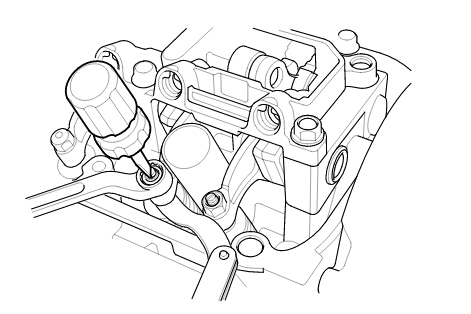
Honda Valve Clearance Adjustment with HDS

Question: Have you found the Honda tutorial for valve adjustment?
Solution: Yes, please check the guide below:

NOTE: Connect the Honda HDS HIM diagnostic system to the DLC, and monitor ECT SENSOR 1. Adjust the valve clearance only when the engine coolant temperature is less than 100 °F (38 °C).


1.Remove the cylinder head covers.


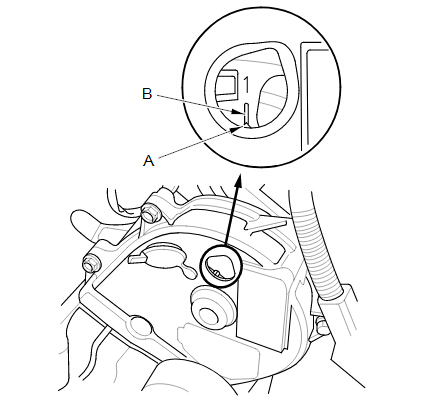
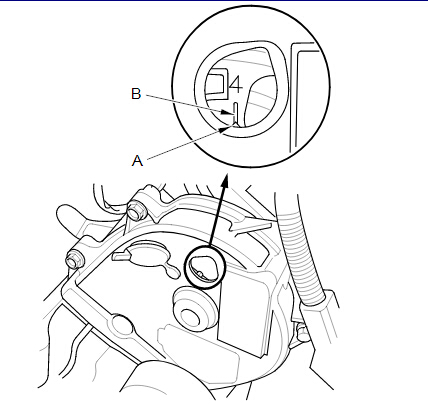
2.Set the No. 1 piston at top dead center (TDC). Align the pointer (A) on the front upper cover with the
No. 1 piston TDC mark (B) on the front camshaft pulley.

honda-value-adjustment-1


3.Select the correct feeler gauge for the valve clearance you are going to check.


Valve Clearance


Intake:

0.20-0.24 mm (0.008-0.009 in)


Exhaust:

0.28-0.32 mm (0.011-0.012 in)


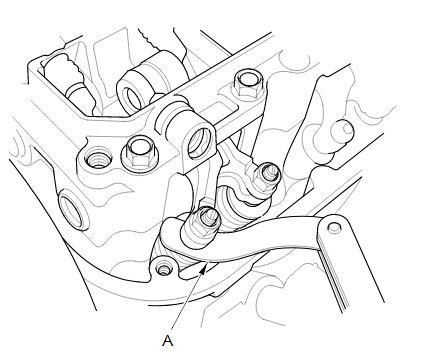
REAR


honda-value-adjustment-2
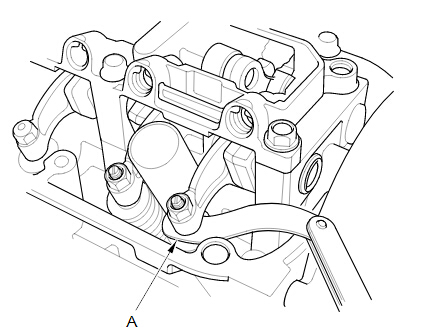
FRONT

honda-value-adjustment-3
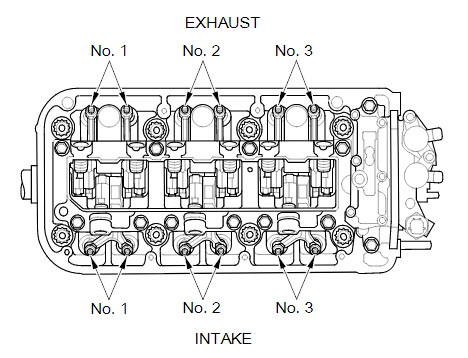
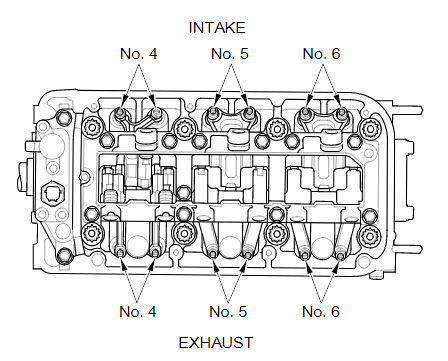
4.Insert the feeler gauge (A) between the adjusting screw and the end of the valve stem on the No. 1 cylinder, and slide it back and forth; you should feel a slight amount of drag.

INTAKE


honda-value-adjustment-4

EXHAUST


honda-value-adjustment-5
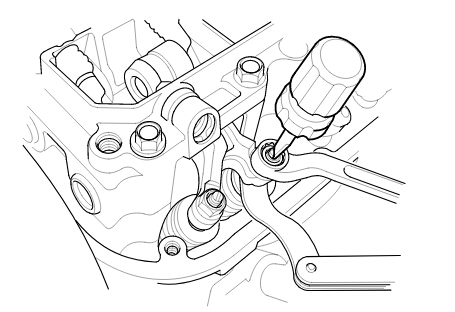
5.If you feel too much or too little drag, loosen the locknut, and turn the adjusting screw until the drag on the feeler gauge is correct.

INTAKE

honda-value-adjustment-6
EXHAUST

honda-value-adjustment-7
6.While holding the adjusting screw with the screw driver, tighten the locknut, then recheck the clearance. Repeat the adjustment, if necessary.


Specified Torque


No. 1, No. 2, No. 3, and No. 4 cylinders:


20 N·m (2.0 kgf·m, 15 lbf·ft)


Apply new engine oil to the nut threads.


No. 5 and No. 6 cylinders:


14 N·m (1.4 kgf·m, 10 lbf·ft)


Apply new engine oil to the nut threads.


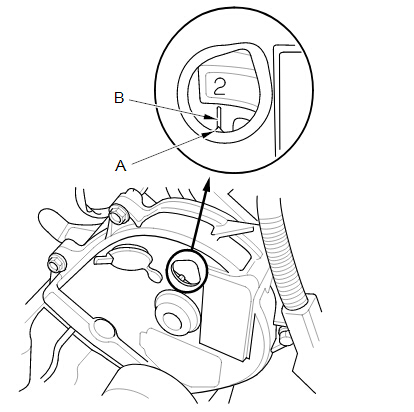
7. Rotate the crankshaft clockwise. Align the pointer (A) on the front upper cover with the No. 4 piston TDC mark (B) on the front camshaft pulley.
honda-value-adjustment-8

8.Check and, if necessary, adjust the valve clearance on the No. 4 cylinder.


9.Rotate the crankshaft clockwise. Align the pointer (A) on the front upper cover with the No. 2 piston TDC mark (B) on the front camshaft pulley.


honda-value-adjustment-9

10.Check and, if necessary, adjust the valve clearance on the No. 2 cylinder.


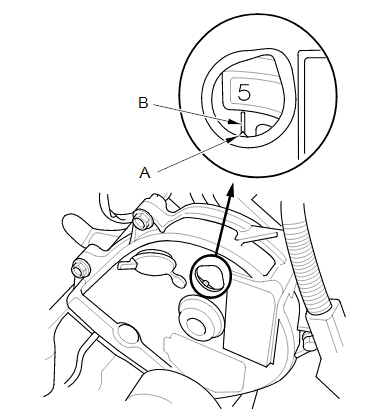
11.Rotate the crankshaft clockwise. Align the pointer (A) on the front upper cover with the No. 5 piston TDC mark (B) on the front camshaft pulley.


honda-value-adjustment-10
12.Check and, if necessary, adjust the valve clearance on the No. 5 cylinder.


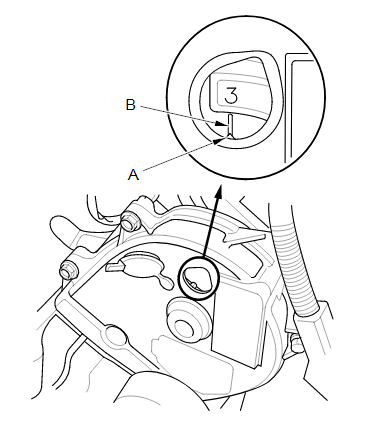
13.Rotate the crankshaft clockwise. Align the pointer (A) on the front upper cover with the No. 3 piston TDC mark (B) on the front camshaft pulley.


honda-value-adjustment-11
14.Check and, if necessary, adjust the valve clearance on the No. 3 cylinder.


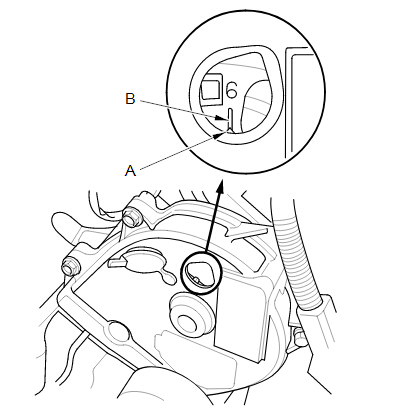
15.Rotate the crankshaft clockwise. Align the pointer (A) on the front upper cover with the No. 6 piston TDC mark (B) on the front camshaft pulley.


honda-value-adjustment-12
16.Check and, if necessary, adjust the valve clearance on the No. 6 cylinder.


17. Install the cylinder head covers.

Tuesday, December 19, 2017

How to use Honda HDS HIM to make a DPF forced regeneration

Here's the step-by-step guide to use Honda HDS HIM diagnostic system to make a DPF (Diesel Particulate Filters) forced regeneration by yourself.


Preparation:

Firstly, you have to buy HIM interface and a laptop:
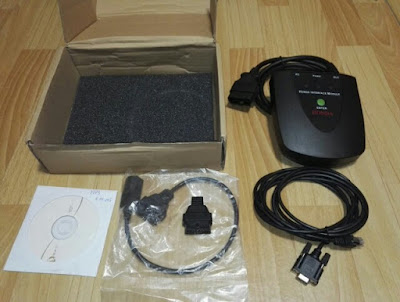
honda-hds-him-scanner

The link to the page where I buy it (84.99USD free shipping) Honda Diagnostic System with double-board. Comes with the HDS software (V3.102.004 I think).

Honda interface connects to the PC only via a Com port (RS232), so if your laptop does not have a COM port, you will need an adapter.

I recommend it -> High Quality Z-TEK USB1.1 to RS232 Convert Connector. It has the advantage of being fully compatible with Windows 7 64bit and it works without problem.
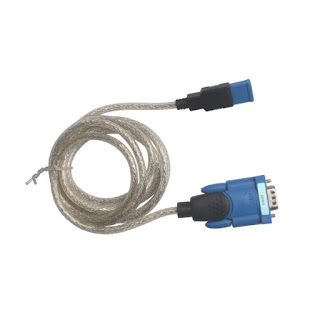
z-tek-usb-to-rs232-cable
You are now in possession of professional cheap tool that can be used on all our Civic 8)

The DPF forced regeneration:

When performing this?
When you are in degraded mode or with the message "Check system", or if like me, you regenerations too close and you want to limit the damage before it is too late.

Small extra info before starting:

- Make sure you have a PC laptop preferably holding the charge for use 1H or desktop PC on UPS to avoid power cut during the operation.

- The operation takes about 30min. So either you stay in the car while time is still on or off with the PC: not to go back in the car during the regeneration, avoids interactions with it to avoid problems.

- If you use an adapter Com (232) -> USB, verify that the com port is set to COM1. The interface does not work on another COM port!

- Check the oil level before and after regen. If after regen, the oil level is too high or if it stinks diesel will require draining.

- Disable the energy saving usb, antivirus, internet and all that can use PC resources.


Honda HDS forced regeneration operation:

On this, I appeal to my memory, because I was a bit stressed during the manip and I also fear that my PC crashes battery.

Let's go:

1) Make a nice little tricks with the car to make the 76 ° or at least not too far

2) Put themselves in a place where noise motors can interfere people and nothing can come under the car. (The DPF rises above 600 ° C)

3) Open the hood

4) Disable all that pump energy (ceiling, etc ...) and especially not fun to reactivate during operation.

5) Connect the HIM to the car and the computer.

6) Start the HDS

7) Turn the ignition on II

8) In the HDS, press the "Select a new vehicle" and enter the mileage.
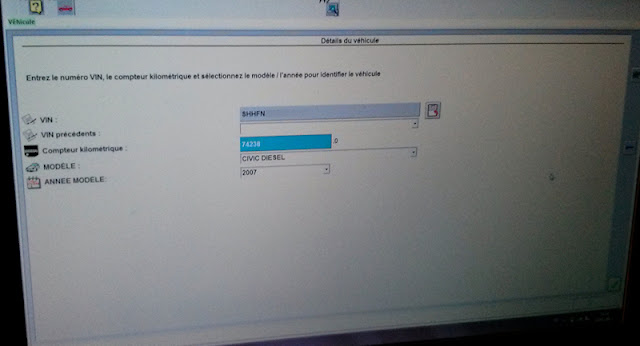
honda-hds-pdf-regen-1

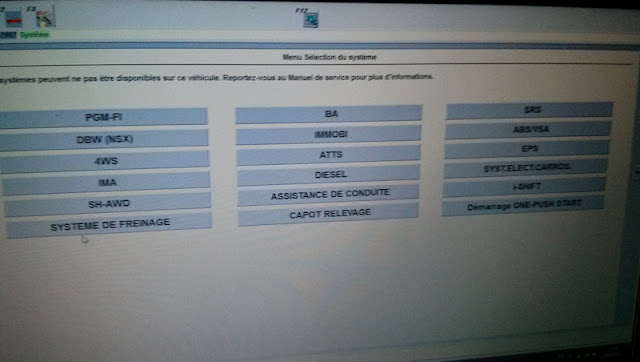
9) Select "System"

10) Select "Diesel"
honda-hds-pdf-regen-2
11) Check and delete the DTC menu "DTC - given frozen". The HDS warn you it is absolutely necessary to remove them before operation and also check the various sensors of the DPF, so if you have a problem with sensors, do not bother going any further.

12) and go back to "Settings"
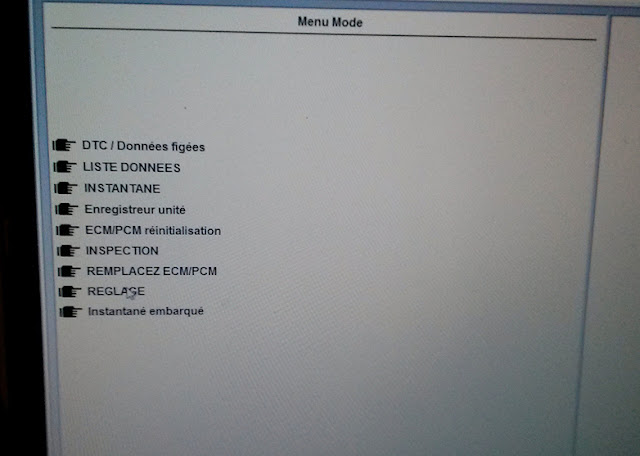
honda-hds-pdf-regen-3
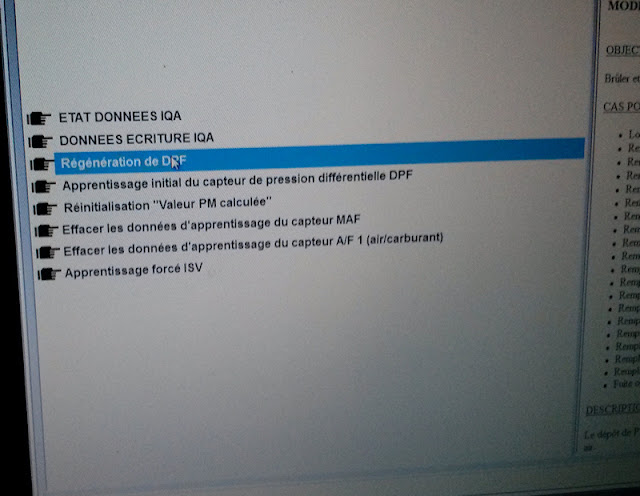
13) Select "DPF Regeneration"

honda-hds-pdf-regen-4
14) Put the engine running, turn on the lights and put on the air conditioner ON

15) If the engine is not the right temp, the HDS asked to accelerate between 1600 and 2400trs/min

16) When the temp is reached, the HDS takes over, release the accelerator.

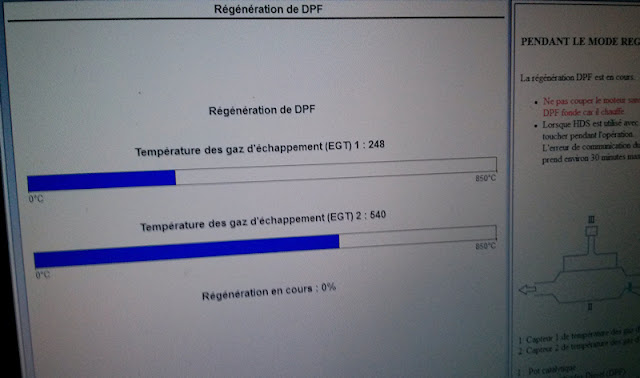
17) Allow the Honda HDS to regeneration. The engine mounts alone at 3000trs/min during regeneration, it is stagnant at 1500 trs/min. At the end of the regeneration scheme dates back to 3000 trs/min to cool the exhaust line (weird, but it is like here)
honda-hds-pdf-regen-5
19) When the regeneration is complete, leave the HDS, turn off the engine, remove the cables from HIM and go for a ride to make sure the cooling line.


That is, your regeneration is done and you win a lot of money doing it yourself.


www.obdii365.com

Honda HDS HIM Memorize Honda Civic 08 TPMS sensor ID

I bought my Honda HDS HIM clone months ago so I thought I would do a bit of a review.
So if you don’t know there are all kinds of clones of Honda’s HDS HIM diagnostic system out there on the Internets. I made a leap of faith and picked one up on obdii365.com about two month ago to reprogram my TPMS sensors (I hate you Honda for this TPMS crap system). I was hesitant because it did not state that it supported my 2011 Fit. The cracked HDS software version that came with it did not cover my car, but I was able to find a newer version (V2.024.05) on the internet that worked. I have successfully used the TPMS features, CKP relearn, idle relearn, ECU reset, and cleared DTS faults. I belive this thing can data log, reprogram gauge clusters, and reprogram the immobilizer for new keys, but have not tried these things yet.
It came with various connectors for self-verification testing too.
So the HDS only has a RS232 DB9 serial port (no usb),and most laptops don’t have them anymore. The adaptor will plug into your laptops usb and replicate a RS232 port. You will probably need a RS232 to USB adapter too. I have always had good luck with FTDI adapters. Future Technology Devices Intl – UC232R-10 The HDS will only connect to com port 1. So you may have to change your com port assigned number when you use a usb adapter. I have only used the Honda HDS on a windows XP laptop so I cannot confirm this works on newer Windows.
Here is another possible option I have not tried yet, but would love to because it is much cheaper and uses USB! Looks like it uses the same HDS software!
And if you are going to do TPMS you might want to look at triggering tools, if not you have to deflate and re-inflate a wheel to trigger the sensor. Our TPMS sensors only only transmit when they are spinning over ~26MPH, detect a rapid pressure change, or are triggered with a 125Mhz signal. I bought the trigger tool. It’s Foxwell made: http://www.obdii365.com/wholesale/foxwell-nt1001-tpms-trigger-tool.html
Overall this is a very powerful tool that lets you do about everything the dealer can!
The factory service manual pretty much explains how to use the HDS in all of Honda’s trouble shooting procedures. All of the things I have used have matched up, like TPMS and CKP relearn.
This is how i used Honda HDS HIM to Memorize Honda Civic 2008 TPMS sensor ID
NOTE:  make the vehicle sit for at least 5 minutes to allow the tire
pressure sensors to switch to sleep mode. The vehicle with the new
tire sensor must be at least 10 ft (3m) away from other vehicles
that have sensors.
Step1: Connect the Honda diagnostic system with vehicle via OBD
port on the driver’s side under the dashboard.
Step2: Turn ignition ON.
Step3: Make sure Honda HIM HDS Diagnostic Toolis well communicated
with TPMS control module.
Step4: Enter vehicle information in HDS program.
honda-hds-memorize-tpms-id-1
Step5: Select “Honda Systems” from Mode selection menu
honda-hds-memorize-tpms-id-2
Step6: Select“TPMS” control module
honda-hds-memorize-tpms-id-3
Step7: Select “Sensor ID Learning” from the Mode menu
honda-hds-memorize-tpms-id-4
Step 8: The Honda HDS software will display Tire pressure sensor
ID, follow the screen prompt to turn on the TPMS Trigger Tool.
honda-hds-memorize-tpms-id-5
Step9: Hold the TPMS tool (A) near the valve stem of one wheel, and
memorize the tire pressure sensor ID by following the screen prompts
on the HDS. (If you turn the ignition OFF before memorizing all
four sensor IDs, the memorizing sensor ID will be canceled.)
Step10: Write down the 4 tire pressure sensor IDs.
Step11: Exit the Honda HDS software and disconnect Honda HIM tool.
Job’s done!
Here are a few more things it claims to do:
Honda functions include:
  • DTC reading and clearing
  • Snapshot function (capture data relative to a trigger event)
  • Vehicle data display (value, line graph, or bar graph formats)
  • DLC locator diagrams
  • Data list display (real-time display of ECU parameters)
  • Onboard tutorial
  • Generic scan tool runs basic tests on non-Honda/Acura vehicles (HDS Tablet and Pocket Tester only)
  • Control module update functions (HDS Tablet and Pocket Tester only)


Friday, October 27, 2017

Honda Diagnostic System HDS HIM Self-Test Guide

How to check if your Honda HDS HIM diagnostic tool works good or not?
You need have self test on Honda HIM Honda diagnostic system .

Here is the how-to’s.

1 Attach the DLC loopback connector to be the end of the vehicle DLC cable on the Honda HIM diagnostic tool
2 Attach the RS232 loopback connector (part of your PGM Tester equipment)) on the HIM
honda-hds-him-self-test-1
3 Connect the PGM Tester Adapter to the POWER socket on Honda HDS HIM device
honda-hds-him-self-test-2
honda-hds-him-self-test-3
honda-hds-him-self-test-4
4 The green LED flashes for 5 seconds
honda-hds-him-self-test-5
5 The green LED continues to flash and the yellow LED glows steadily
Press Enter button the HIM
honda-hds-him-self-test-6
honda-hds-him-self-test-7
6 The green, yellow, red LEDs flash alternately for 15 seconds
honda-hds-him-self-test-8
honda-hds-him-self-test-9
honda-hds-him-self-test-10
7 The green and yellow LED flash alternately.
honda-hds-him-self-test-11
honda-hds-him-self-test-12
8 Disconnect the DLC loopback connector, then press the Enter button
honda-hds-him-self-test-13
9 The green, yellow and red LEDs flash alternately for 15 seconds

10 When Honda HIM self test is complete, and the HIM hardware is confirmed OK, then green LED glows steadily.
honda-hds-him-self-test-14
Job’s done.